


Table of Contents
Intro: System.Text.Json vs Newtonsoft.Json
Disclaimer: Though it pains me, I’ve purposefully used the American variant of “Serialization” vs the British “Serialisation” for consistency in this post.
In the post-lull period of Millennium Bug hysteria, Douglas Crockford was working on something that would revolutionise the way applications exchanged data in a new web-oriented world. He called it JavaScript Object Notation – JSON, for short. And since the first message was sent back in April 2001, it’s been quite a hit.
In 2026, JSON serialisation powers almost every .NET application – from .NET Core APIs to cloud microservices. And for many years, Newtonsoft.Json (aka Json.NET) was the go-to library for developers. But System.Text.Json was released with .NET Core 3.0, and continues to mature into a fast, built-in alternative that’s been steadily growing in depth and capability ever since, with .NET 9 and the upcoming .NET 10 closing even more gaps.
And still, in 2026, the question developers keep Googling is the same: “System.Text.Json or Newtonsoft.Json?”
Picking a JSON stack in .NET isn’t just about speed; it’s about guardrails, features, and how much ceremony you want in day-to-day code. Below I compare System.Text.Json and Newtonsoft.Json with focused examples (strict mode, PipeReader, source-gen, polymorphism, naming), then back it up with benchmarks (POCOs and a 5 MB dataset).
TL;DR – Which Should I Use?
- Greenfield APIs, performance-sensitive, AOT/trimming: start with System.Text.Json.
- Heavy JSONPath/LINQ-to-JSON, exotic converters, legacy payloads: you may prefer Newtonsoft.Json.
- Mixed world: STJ for controllers/Minimal APIs, keep Newtonsoft in the few places you need JSONPath or mature converters.
Notes on versions
Examples marked “.NET 10 RC1” use preview APIs; names can shift at RTM. I’ll update the repo when RTM is released.
Newtonsoft.Json Today
Newtonsoft.Json (aka Json.NET) first shipped back in 2006 and quickly became one of the most widely-used JSON frameworks in .NET because of its rich feature set and flexibility – such as LINQ-to-JSON, advanced converters, and circular reference handling). Its creator, James Newton-King, now works at Microsoft as a Principal Software Engineer on the .NET Core team. His involvement with System.Text.Json library is limited to occasional design consultations.
System.Text.Json vs Newtonsoft.Json .NET 10 Examples
I’ll run you through some of the key differences between System.Text.Json vs Newtonsoft.Json below. It’s not meant as an exhaustive comparison. If you’re looking to migrate your current projects to System.Text.Json, Microsoft has a handy side-by-side table of what’s supported in both libraries. Examples have been tested on .NET 10 RC1, available in my System.Text.Json vs Newtonsoft.Json Benchmarks GitHub repo, along with sample JSON data.
I’ve used namespace aliases for short, as well as two methods to make the contents of the console a little more readable. Ensure you have these at the top of your code if you run any of the examples by copying code straight from this page:
using NJ = Newtonsoft.Json;
using STJ = System.Text.Json;

static void Title(string s) { Console.WriteLine(); Console.ForegroundColor = ConsoleColor.White; Console.BackgroundColor = ConsoleColor.DarkBlue; Console.Write($" {s} "); Console.ResetColor(); Console.WriteLine(); }
static void Warn(string s) { Console.ForegroundColor = ConsoleColor.Magenta; Console.WriteLine(s); Console.ResetColor(); }1. Strict Mode: Duplicate Keys & Numbers-as-Strings (Security/Correctness)
System.Text.Json in .NET 10 RC1 introduces a JsonSerializerOptions.Strict
Title("1. Strict mode: duplicate keys and numbers-as-strings (.NET 10 RC1)");

var dup = """{"sameKey":1,"sameKey":2}""";

// System.Text.Json strict duplicate detection
try { _ = STJ.JsonSerializer.Deserialize<Dictionary<string,int>>(dup, STJ.JsonSerializerOptions.Strict); }
catch (STJ.JsonException ex) { Warn($"Strict System.Text.Json duplicate keys: {ex.GetType().Name} - {ex.Message}"); }

// System.Text.Json strict number-as-string detection
try { _ = STJ.JsonSerializer.Deserialize<Dictionary<string, int>>("""{"n":"1"}""", STJ.JsonSerializerOptions.Strict); }
catch (STJ.JsonException ex) { Warn($"Strict System.Text.Json number as string: {ex.Message}"); }

// System.Text.Json default last-wins behaviour
var stjDict = STJ.JsonSerializer.Deserialize<Dictionary<string,int>>(dup)!;
Console.WriteLine($"System.Text.Json default 'sameKey' = {stjDict["sameKey"]} (last wins)");

// Newtonsoft.Json: strict duplicate detection
var loadSettings = new JsonLoadSettings { DuplicatePropertyNameHandling = DuplicatePropertyNameHandling.Error };
try { _ = JObject.Parse(dup, loadSettings); }
catch (NJ.JsonReaderException ex) { Warn($"Newtonsoft.Json threw: {ex.GetType().Name} - {ex.Message}"); }Running the demo console application, you’ll see that System.Text.Json comfortably handles strict scenarios, such as duplicate keys and number-as-string scenarios. Strict behaviour is also available in Newtonsoft.Json too, which I’ve included an example of:

Duplicate keys and numbers-as-strings are a great way for bugs to hide. By using JsonSerializerOptions.Strict we gain a lot more control over scenarios where the data isn’t as expected.
2. PipeReader with System.Text.Json
Introduced with .NET 10 is the ability for high-throughput reading with lower allocations by deserialising directly from PipeReader:
Title("2. PipeReader with System.Text.Json (.NET 10 RC1)");
var pipeArray = await DataUtils.DeserializeFromFile_SystemTextJson_PipeReaderAsync<List<object>>();
Console.WriteLine($"Parsed array length (PipeReader): {pipeArray?.Count}");The underlying method reads from the 5 MB JSON file in the demo project, but the data can be streamed from wherever is appropriate for your use case:
public static async Task<T?> DeserializeFromFile_SystemTextJson_PipeReaderAsync<T>()
{
	using var fs = File.OpenRead(DataFilePath);
	var pipeReader = PipeReader.Create(fs);

	return await STJ.JsonSerializer.DeserializeAsync<T>(pipeReader);
}Check out the example code in the demo project, which you can see in action:

What once required creating a Stream adapter and an intermediary buffer is no longer needed; you can stay on the pipeline path all the way into the serializer for better performance and efficiency – especially when working with larger payloads.
Read more about PipeReader support for JSON on Microsoft Learn.
3. Source Generation
JsonSerializerContext itself isn’t new. It was introduced back with .NET 7 as part of the System.Text.Json source generator, aimed at eliminating the performance cost of reflection-based serialization. The SDK’s source-generator emits the type metadata the serializer needs. Here’s an example of the JsonSerializerContext partial class I used, with various settings for the demos:
using System.Text.Json.Serialization;
using JsonBenchmarking.Models;

namespace JsonBenchmarking;

[JsonSourceGenerationOptions(
    WriteIndented = false,
    GenerationMode = JsonSourceGenerationMode.Metadata,
    DefaultIgnoreCondition = JsonIgnoreCondition.WhenWritingNull,
    ReferenceHandler = JsonKnownReferenceHandler.Preserve // NEW in .NET 10
)]
[JsonSerializable(typeof(List<Product>))]
[JsonSerializable(typeof(Product))]
[JsonSerializable(typeof(Person))]
[JsonSerializable(typeof(List<Person>))]
[JsonSerializable(typeof(Animal[]))]
[JsonSerializable(typeof(Cat))]
[JsonSerializable(typeof(Dog))]
[JsonSerializable(typeof(Node))]
public partial class AppJsonContext : JsonSerializerContext { }It’s faster for a number of reasons:
- No reflection warm-up: On the first call, the normal serializer has to inspect your types at runtime to work out how to read and write them. That costs time, but with a generated
JsonSerializerContextthat work has already been done – so the first call is fast. - Fewer allocations: The normal reflection path creates short-lived helper objects while it’s figuring things out. The generator writes the needed info directly into the compiled code (IL – Intermediate Language), so the serializer doesn’t have to create those extra objects. That means fewer tasks for the GC, resulting in better performance.
- Ahead-of-Time (AOT) and trimming-friendly: Sometimes regular reflection can be broken by native AOT builds (e.g., for iOS/Android, and WASM builds) that remove unused code (called ‘linking’ or ‘trimming’). Because the generated context doesn’t rely on hidden reflection, the linker won’t accidentally strip needed types and you don’t have to use special ‘preserve’ hints to say “don’t delete this bit of code” (e.g., attributes like
[DynamicDependency],[Preserve], or[DynamicallyAccessedMembers]).
Here’s an example from the System.Text.Json vs Newtonsoft.Json demo project, showing the AppJsonContext being used to serialize and deserialize objects:
Title("3. Source generation: serialize/deserialize via AppJsonContext");
var products = new List<Product> { new() { Id = 1, Name = "Widget" }, new() { Id = 2, Name = "Thing" } };
var jsonGen = STJ.JsonSerializer.Serialize(products, AppJsonContext.Default.ListProduct);
var roundtrip = STJ.JsonSerializer.Deserialize(jsonGen, AppJsonContext.Default.ListProduct)!;
Console.WriteLine($"Round-tripped {roundtrip.Count} products (source-gen).");The console output shows the successful operations:

4. Reference Preservation (Object Graphs)
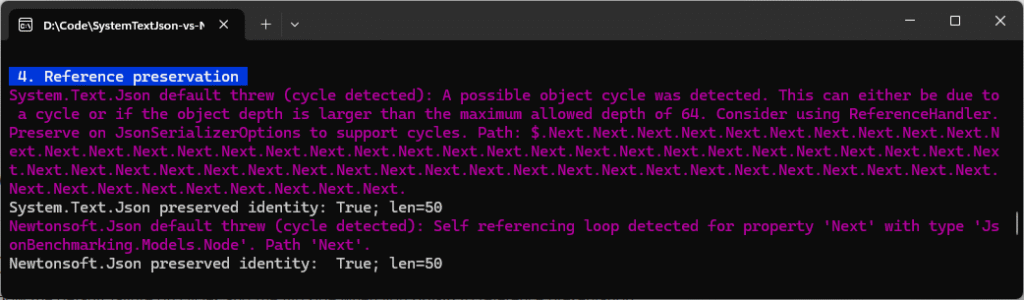
JSON is a tree format and .NET objects can form graphs (things that can point back to each other – e.g., root -> child -> root). And that cycle can cause problems if you try to serialize them in their default state. The below code shows both the default error behaviour, plus the working patterns with attributes specified, which allows System.Text.Json and Newtonsoft.Json to both handle these scenarios successfully:
Title("4. Reference preservation");

// 2-node cycle: root -> child -> root
var root = new Node();
root.Next = new Node { Next = root };

// System.Text.Json default: throws on cycles
try
{
	_ = STJ.JsonSerializer.Serialize(root);
}
catch (STJ.JsonException ex)
{
	Warn($"System.Text.Json default threw (cycle detected): {ex.Message}");
}

// System.Text.Json with Preserve: round-trips identity using $id/$ref
var stjOpts = new STJ.JsonSerializerOptions
{
	ReferenceHandler = STJ.Serialization.ReferenceHandler.Preserve
};
var stjJson = STJ.JsonSerializer.Serialize(root, stjOpts);
var stjBack = STJ.JsonSerializer.Deserialize<Node>(stjJson, stjOpts)!;
Console.WriteLine($"System.Text.Json preserved identity: {ReferenceEquals(stjBack, stjBack.Next!.Next)}; len={stjJson.Length}");

// Newtonsoft.Json equivalent: PreserveReferencesHandling + Serialize
var njSettings = new NJ.JsonSerializerSettings
{
	PreserveReferencesHandling = NJ.PreserveReferencesHandling.All,
	ReferenceLoopHandling = NJ.ReferenceLoopHandling.Serialize
};

try
{
	_ = NJ.JsonConvert.SerializeObject(root); // default: throws on self-referencing loops
}
catch (NJ.JsonSerializationException ex)
{
	Warn($"Newtonsoft.Json default threw (cycle detected): {ex.Message}");
}

var njJson = NJ.JsonConvert.SerializeObject(root, njSettings);
var njBack = NJ.JsonConvert.DeserializeObject<Node>(njJson, njSettings)!;
Console.WriteLine($"Newtonsoft.Json preserved identity: {ReferenceEquals(njBack, njBack.Next!.Next)}; len={njJson.Length}");The console shows the specific errors generated by the libraries if reference preservation isn’t handled correctly:
5. Polymorphism & [JsonRequired]
Polymorphism just means “many forms” and it applies in C# when we have one or more classes that are related to each other in some way. Here’s an example of how a Dog and Cat classes inherit from an Animal, which contains a Name property, applicable to all:
[JsonPolymorphic(TypeDiscriminatorPropertyName = "$type", UnknownDerivedTypeHandling = JsonUnknownDerivedTypeHandling.FailSerialization)]
[JsonDerivedType(typeof(Dog), typeDiscriminator: "dog")]
[JsonDerivedType(typeof(Cat), typeDiscriminator: "cat")]
public abstract class Animal
{
	[JsonRequired] public string Name { get; set; } = "";
}

public sealed class Dog : Animal
{
	public string Breed { get; set; } = "";
}

public sealed class Cat : Animal
{
	public int Lives { get; set; } = 9;
}Note how there’s a [JsonRequired] attribute on the Name property of the derived class Animal. Now imagine we’re building a system that is expecting JSON in a particular format about a dog, but the Name property is missing.
Polymorphic deserialization used to be risky in System.Text.Json in these types of scenarios, but now you can decorate with the [JsonRequired] attribute above, meaning deserialization will enforce those validation rules. See an example below of both a valid and invalid JSON payload:
Title("5. Polymorphism + [JsonRequired]");
Animal[] pets = { new Cat { Name = "Mittens", Lives = 9 }, new Dog { Name = "Rex", Breed = "Collie" } };
var petsJson = STJ.JsonSerializer.Serialize(pets);
Console.WriteLine("Valid polymorphic payload: " + petsJson);

var roundTripped = STJ.JsonSerializer.Deserialize<Animal[]>(petsJson)!;
Console.WriteLine($"Deserialized (round-trip) {roundTripped.Length} animals: [{string.Join(", ", roundTripped.Select(a => a.GetType().Name))}]");

try
{
	var bad = "[{ \"$type\": \"dog\", \"breed\": \"Husky\" }]";
	_ = STJ.JsonSerializer.Deserialize<Animal[]>(bad);
}
catch (STJ.JsonException ex) { Warn($"'Name' missing, exception thrown: {ex.GetType().Name} - {ex.Message}"); }Instead of silently failing, the console shows an exception:

This type of guardrail is critically important in API-driven systems where complex payloads from disparate systems may cause data integrity issues. It’s always important to think about declarations such as [JsonDerivedType] and [JsonRequired] to enforce invariants.
Always remember never to accept unconstrained type names from untrusted input (and to disable any “type name” fallback in Newtonsoft.Json).
6. Naming Policy: snake_case
APIs often have different requirements and conventions in what property names are used. Some use PascalCase, some camelCase, and others use snake_case:
// Pascal case
{ "FirstName": "John" }

// Camel case
{ "firstName": "John" }

// Snake case
{ "first_name": "John" }Here’s an example of how your casing preference is set via the JsonSerializerOptions in the example below (choose from CamelCase, SnakeCaseLower, KebabCaseLower, KebabCaseUpper).
Title("6. Naming policy: snake_case");
var anon = new { FirstName = "Cecil", OrderCount = 3 };
Console.WriteLine("Without snake: " + STJ.JsonSerializer.Serialize(anon));
Console.WriteLine("With snake: " + STJ.JsonSerializer.Serialize(anon, new STJ.JsonSerializerOptions { PropertyNamingPolicy = STJ.JsonNamingPolicy.SnakeCaseLower }));Notice how the console output changes depending on the PropertyNamingPolicy chosen:

You can achieve the same with Newtonsoft.Json, but it requires more setup via a ContractResolver and SnakeCaseNamingStrategy in the JsonSerializerSettings. It would look something like this:
JsonConvert.SerializeObject(
    new { FirstName = "John" },
    new JsonSerializerSettings
    {
        ContractResolver = new DefaultContractResolver
        {
            NamingStrategy = new SnakeCaseNamingStrategy()
        }
});System.Text.Json makes it a lot simpler, with a single option. And it’s also easy to configure a global property naming policy within your .NET Core apps in the Program.cs:
builder.Services.ConfigureHttpJsonOptions(o =>
{
    o.SerializerOptions.PropertyNamingPolicy = System.Text.Json.JsonNamingPolicy.SnakeCaseLower;
    o.SerializerOptions.ReferenceHandler = System.Text.Json.Serialization.ReferenceHandler.Preserve;
});7. DateOnly / TimeOnly
A really cool feature of System.Text.Json is that it now handles DateOnly and TimeOnly out of the box, so no custom converters or attributes are needed:
Title("7. DateOnly / TimeOnly interop");
var o = new { D = DateOnly.FromDateTime(DateTime.UtcNow), T = TimeOnly.FromDateTime(DateTime.UtcNow) };
Console.WriteLine(STJ.JsonSerializer.Serialize(o));See from the console output below how DateOnly serializes as "yyyy-MM-dd" (e.g., "2025-09-15") and TimeOnly serializes as "HH:mm:ss.fffffff" (24-hour, up to seven fractional seconds, e.g., "12:03:15.1234567"):

8. DOM / Query: JsonNode vs JSONPath
Manipulating raw JSON when you don’t require full DTOs is sometimes the simplest thing to do – particularly when unit testing your code. There are two common approaches in both frameworks:
System.Text.Json: Parse into lightweight DOM (JsonNode/JsonObject/JsonArray) and index into it.Newtonsoft.Json: Parse intoJObjectand useJSONPath(a mini query language) to navigate.
Here’s an example of how each work:
Title("8. DOM/query: JsonNode vs JSONPath");
var doc = """{"items":[{"name":"alpha"},{"name":"beta"}]}""";

var node = JsonNode.Parse(doc)!;
Console.WriteLine("System.Text.Json first: " + node["items"]![0]!["name"]!.GetValue<string>());
node["items"]![0]!["name"] = "ALPHA";
Console.WriteLine("System.Text.Json modified: " + node["items"]![0]!["name"]!.GetValue<string>());

var jobj = JObject.Parse(doc);
Console.WriteLine("Newtonsoft.Json first: " + jobj.SelectToken("$.items[0].name")!.Value<string>());
jobj.SelectToken("$.items[0].name")!.Replace("ALPHA");
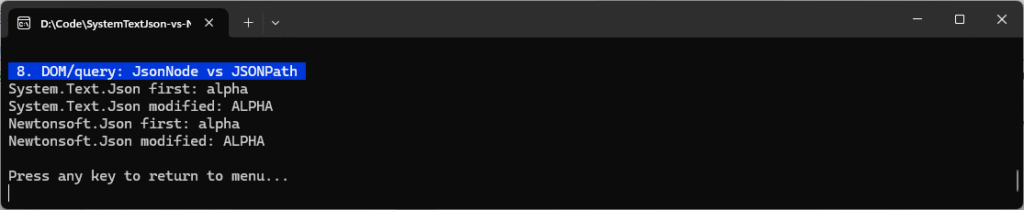
Console.WriteLine("Newtonsoft.Json modified: " + jobj.SelectToken("$.items[0].name")!.Value<string>());The code successfully modifies the value of the first item’s name property, as seen in the console output:
DOM guidance
For read-only queries, preferJsonDocumentoverJsonNodefor lower allocations. For rich querying,Newtonsoft.Json‘sJSONPathis a big win.
System.Text.Json vs Newtonsoft.Json: Benchmarks in .NET 10
Benchmarking tasks two and three in the console application are enabled by adding the BenchmarkDotNet Nuget package. In this example, we’re using v0.15.2. We’ll look at benchmarking both a POCO vs string/stream, as well as a 5 MB JSON dataset, which is more realistic for read/write operations.
Test Environment
Benchmarking in these demos has been run in the following environment:
CPU:
	13th Gen Intel(R) Core(TM) i9-13900
	Base speed:	2.00 GHz
	Sockets:	1
	Cores:	24
	Logical processors:	32
	Virtualisation:	Enabled
	L1 cache:	2.1 MB
	L2 cache:	32.0 MB
	L3 cache:	36.0 MB
Memory:
	32.0 GB
	Speed:	5600 MT/s
	Slots used:	2 of 2
	Form factor:	SODIMM
	Hardware reserved:	487 MB
.NET SDK:
 Version:           10.0.100-rc.1.25451.107
 Commit:            2db1f5ee2b
 Workload version:  10.0.100-manifests.a6e8bec0
 MSBuild version:   17.15.0-preview-25451-107+2db1f5ee2
Runtime Environment:
 OS Name:     Windows
 OS Version:  10.0.26100
 OS Platform: Windows
 RID:         win-x64
Base Path: C:\Program Files\dotnet\sdk\10.0.100-rc.1.25451.107\As this .NET 10 RC1 build is currently in preview, some API names may change in RTM.
Running the Tests
If you want to run these tests yourself, use options three and four in the menu and ensure you’ve started the console application without debugging and in release mode. You’ll see the following as each of the benchmarking tests are run, and they may take a few minutes to complete:

Run this command from your console, if you’re not using an IDE:
dotnet run -c Release # choose options 3 and 4 in the menu for BenchmarkDotNet1. Benchmark Plain Old C# Objects (POCO) vs String/Stream
To get a clean baseline, we’ll first benchmark vanilla Plain Old C# Objects (POCOs) that look like typical API contracts: a Person with a nested Address. There are no custom converters and no special options – just the defaults you’d likely use in production.
The fixture creates a single Person instance up front so that both serializers see the same object graph. The [MemoryDiagnoser] is enabled, so BenchmarkDotNet reports time and allocations (and Garbage Collection (GC) counts), not just throughput. The code will run four micro-benchmarks to cover both directions:
- System.Text.Json -> Serialize POCO
- Newtonsoft.Json -> Serialize POCO
- System.Text.Json -> Deserialize POCO
- Newtonsoft.Json -> Deserialize POCO
POCO Benchmark Code
[MemoryDiagnoser]
public class JsonBenches
{
	private readonly Person _person = new()
	{
		Name = "Ben Mark",
		Age = 32,
		Address = new Address { Line1 = "123 High Street", City = "London", Country = "UK" }
	};

	private readonly string _rawJson;

	public JsonBenches()
	{
		_rawJson = STJ.JsonSerializer.Serialize(new List<object> {
			new { id = 1, name = "John" }, new { id = 2, name = "Ben" }, new { id=3, name="Mark" }
		});
	}

	[Benchmark(Description = "System.Text.Json: Serialize POCO")]
	public string STJ_Serialize_POCO() => STJ.JsonSerializer.Serialize(_person);

	[Benchmark(Description = "Newtonsoft.Json: Serialize POCO")]
	public string NJ_Serialize_POCO() => NJ.JsonConvert.SerializeObject(_person);

	[Benchmark(Description = "System.Text.Json: Deserialize POCO")]
	public Person? STJ_Deserialize_POCO() => STJ.JsonSerializer.Deserialize<Person>(STJ.JsonSerializer.Serialize(_person));

	[Benchmark(Description = "Newtonsoft.Json: Deserialize POCO")]
	public Person? NJ_Deserialize_POCO() => NJ.JsonConvert.DeserializeObject<Person>(NJ.JsonConvert.SerializeObject(_person));
}The deserialization benchmarks serialize the POCO and then immediately deserialize it to ensure each library parses its own canonical JSON. If you want “pure” deserialization numbers, use a prebuilt JSON string and benchmark Deserialize(…) only.
The Results
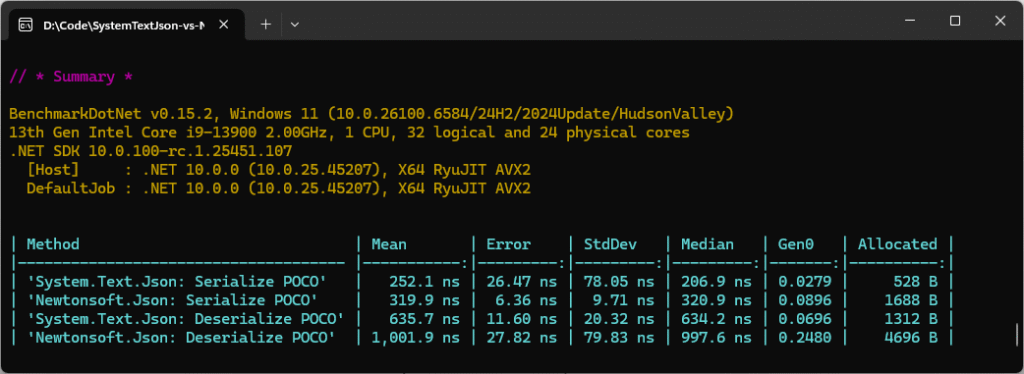
On .NET 10 RC1, System.Text.Json still outpaces Newtonsoft.Json by ~20-35% in raw throughput while cutting allocations by ~3x in serialization and ~3.5x in deserialization. The charts show mean execution time (left, lower = faster) and allocated memory (right, lower = less GC pressure):

The key takeaway is that System.Text.Json is consistently faster and leaner than Newtonsoft.Json for small POCOs.
2. Benchmark Large JSON file: string vs stream vs PipeReader
The second benchmark below simulates real-world ingestion: a JSON array on disk (DataUtils.DataFilePath) parsed into List:
- System.Text.Json: From
string:File.ReadAllText(...)->JsonSerializer.Deserialize<List<object>>(raw). It forces the entire file into memory first; simplest, but the most allocations. - Newtonsoft.Json: From
string: same idea withJsonConvert.DeserializeObject<List<object>>(raw). - System.Text.Json:
Stream:File.OpenRead(...)->JsonSerializer.DeserializeAsync<List<object>>(stream). It parses as bytes arrive; avoids a giant string buffer. - System.Text.Json:
PipeReader(.NET 10):DeserializeAsync<List<object>>(PipeReader)via a helper method. Same streaming win, pipelines-friendly for Kestrel/ASP.NET Core. - Newtonsoft.Json: Stream:
Deserialize<List<object>>(stream)(sync reader over a stream).
JSON File Benchmark Code
[MemoryDiagnoser]
public class FileDatasetBenches
{
	[Benchmark(Description = "System.Text.Json: From string")]
	public List<object>? STJ_FromString()
	{
		var raw = File.ReadAllText(DataUtils.DataFilePath);
		return STJ.JsonSerializer.Deserialize<List<object>>(raw);
	}

	[Benchmark(Description = "Newtonsoft.Json: From string")]
	public List<object>? NJ_FromString()
	{
		var raw = File.ReadAllText(DataUtils.DataFilePath);
		return NJ.JsonConvert.DeserializeObject<List<object>>(raw);
	}

	[Benchmark(Description = "System.Text.Json: Stream -> DeserializeAsync<List<object>>")]
	public async Task<List<object>?> STJ_Stream_Async()
	{
		using var fs = File.OpenRead(DataUtils.DataFilePath);
		return await STJ.JsonSerializer.DeserializeAsync<List<object>>(fs);
	}

	[Benchmark(Description = "System.Text.Json: PipeReader -> DeserializeAsync<List<object>> (.NET 10)")]
	public async Task<List<object>?> STJ_PipeReader_Async()
		=> await DataUtils.DeserializeFromFile_SystemTextJson_PipeReaderAsync<List<object>>();

	[Benchmark(Description = "Newtonsoft.Json: Stream -> Deserialize<List<object>>")]
	public List<object>? NJ_Stream()
		=> DataUtils.DeserializeFromFile_Newtonsoft_Stream<List<object>>();
}This test deliberately uses a dynamic shape (List<object>) so both libraries take their DOM paths – System.Text.Json via JsonElement, Newtonsoft.Json via JToken/JObject. That mirrors the common ingestion scenario and makes for a good stress test.
I’ve got [MemoryDiagnoser] turned on, so the results show both mean time and allocated bytes (plus GC counts). It’s a macro-style benchmark that includes file I/O; after the first run the OS file cache is warm, so what you’re mostly seeing is parse + allocation cost – which is exactly how a warmed-up service behaves in production.
In terms of expectations: the “from string” variants will be slower and much heavier on memory because the entire file is first materialised into one big string. The streaming and PipeReader variants will be faster and dramatically leaner. PipeReader should land very close to Stream on raw numbers, but it plugs straight into HttpRequest.BodyReader and pipelines-based servers, so it’s the natural fit for high-throughput ASP.NET Core.
The Results
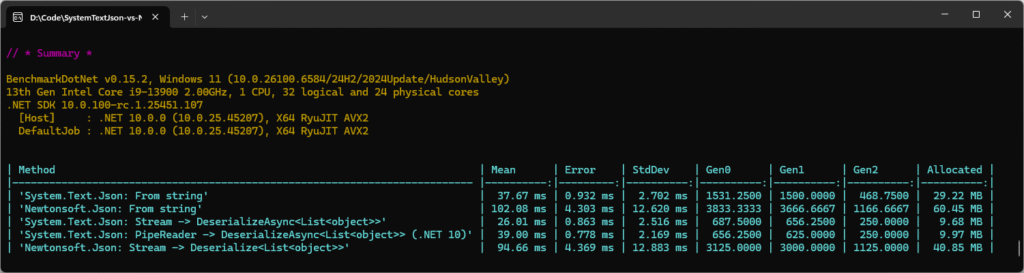
The bar chart below compares the five ways of parsing the same large JSON file. The left panel shows mean execution time (ms) and the right panel shows allocated memory (MB). In both cases, lower is better.
What we see is that the “from string” runs pay a big tax by materialising the whole file into one giant string, so they’re slower and much heavier on memory. The streaming runs avoid that overhead and are dramatically leaner (often ~3x less allocation with System.Text.Json), while PipeReader lands essentially neck-and-neck with Stream on raw numbers and is the most natural fit for ASP.NET Core (HttpRequest.BodyReader) and pipelines-based servers.

Here’s a summary of the data:
| Method | Mean | Allocated | Takeaway |
|---|---|---|---|
| STJ: From string | 37.67 ms | 29.22 MB | Fast, moderate memory |
| NJ: From string | 102.08 ms | 60.45 MB | ~3x slower, ~2x more memory |
| STJ: Stream → DeserializeAsync | 26.01 ms | 9.68 MB | Faster and much leaner |
| STJ: PipeReader → DeserializeAsync (.NET 10) | 30.00 ms | 9.97 MB | Nearly identical to Stream, lower allocations, pipelines-friendly |
| NJ: Stream → Deserialize | 94.66 ms | 40.85 MB | Still much slower, more memory-hungry |
For large payloads, deserialising directly from a Stream or PipeReader is both faster and up to 3x more memory efficient than deserialising from a string. Newtonsoft.Json struggles here, while System.Text.Json keeps allocations lean – especially with .NET 10’s new PipeReader support.
Key Takeaways
- System.Text.Json dominates Newtonsoft.Json: it’s faster and uses way less memory.
- Strings are expensive: deserialising from a string forces the entire JSON payload into memory, almost 3x the allocations compared to using
Stream/PipeReader. PipeReader(new in .NET 10): gives the same win asStreambut integrates seamlessly with ASP.NET Core (HttpRequest.BodyReader) and pipelines-based servers.- GC pressure (Gen0/Gen1/Gen2) mirrors allocations: Newtonsoft.Json’s methods push much more work onto the GC.
Where Newtonsoft.Json is Still Great
If you feel like you’re “stuck” with Newtonsoft.Json, don’t despair – there are loads of things that it still does really well:
- JSONPath/LINQ-to-JSON for quick ad-hoc queries in tests/tools.
- Mature ecosystem of converters for edge-case formats.
- Legacy payloads that assume flexible parsing or soft typing.
Run Your Own Benchmarks
Learn how to run your own benchmarks just like this in my step-by-step walkthrough: BenchmarkDotNet in .NET 10: Step-by-Step with 5 Real C# Benchmarks.
Final Thoughts
For most greenfield .NET 10 projects, System.Text.Json should be your first choice. Newtonsoft.Json remains indispensable if you need LINQ-to-JSON or legacy quirks, but its role is shrinking fast. Benchmark your own workloads, but the direction of travel is clear: System.Text.Json is now the modern, supported choice.
Hopefully you’ve learnt a bit about BenchmarkDotNet too and how simple it is to use to measure and optimise your code. I’ll publish a dedicated article on setting it up and using it soon, so keep an eye out for that. And don’t forget to leave a comment and share this post if you found it useful.
If you want to play around with any of the code you’ve seen on this page, don’t forget to check out my System.Text.Json vs Newtonsoft.Json Benchmarks repo on GitHub.
Until next time, happy coding!